Indice
Bazaar Explorer
Introduction
This tour shows Bazaar Explorer running on a Windows desktop. If you are using another desktop, you may prefer to take the GNOME, KDE or Mac OS X tour.
Explorer has 3 main views:
- Welcome page
- Repository view
- Status view
Welcome page
If Explorer is started without an initial location, the Welcome page is opened. There are four panels as shown below.
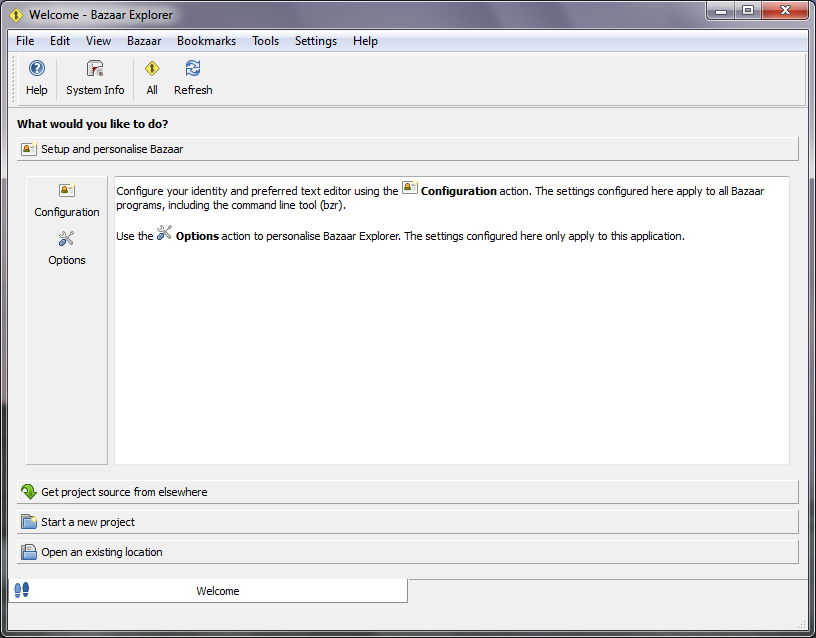 The “setup” welcome
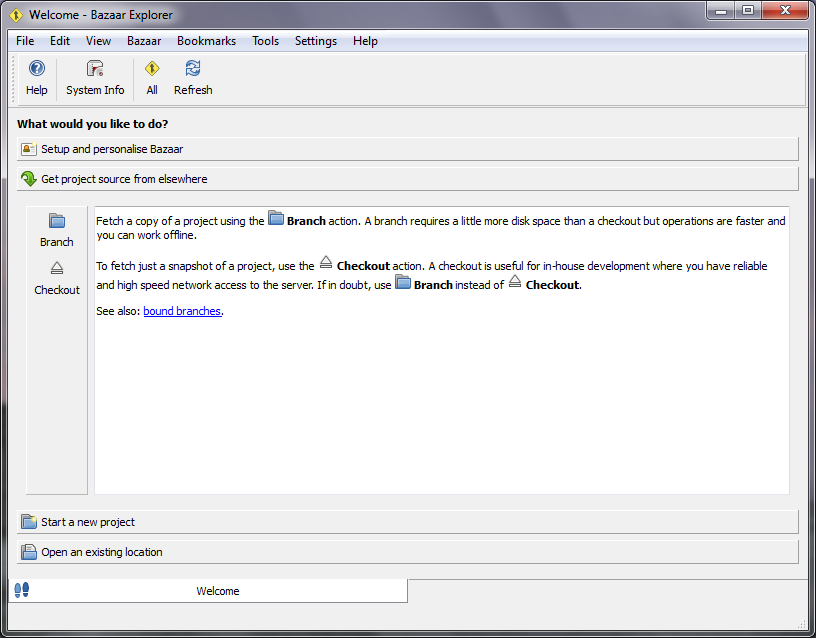 The “get sources” welcome
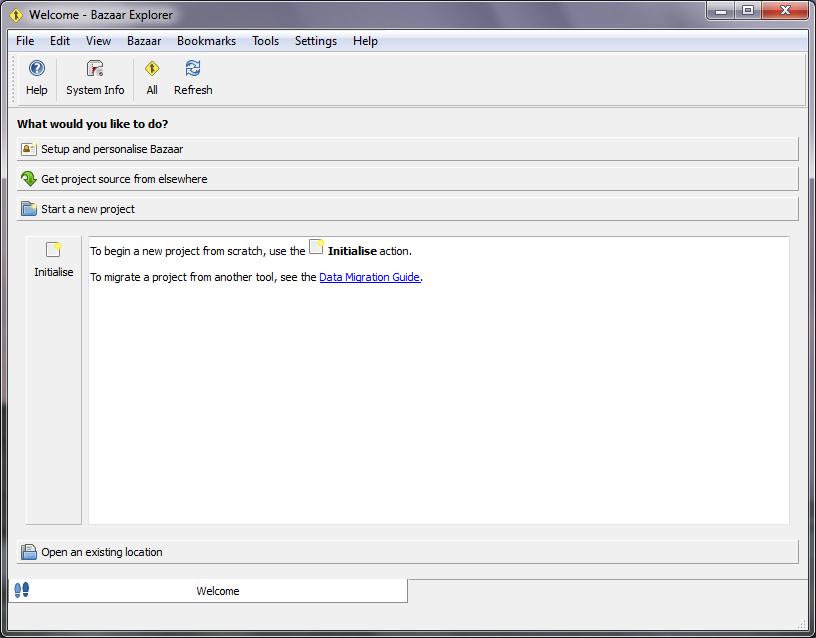 The “new project” welcome
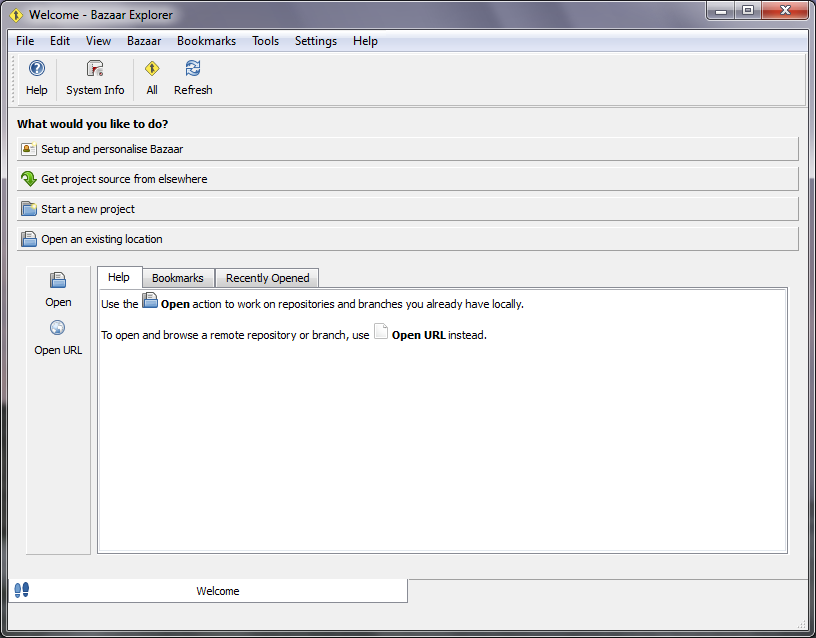 The “open locations” welcome (Help tab)
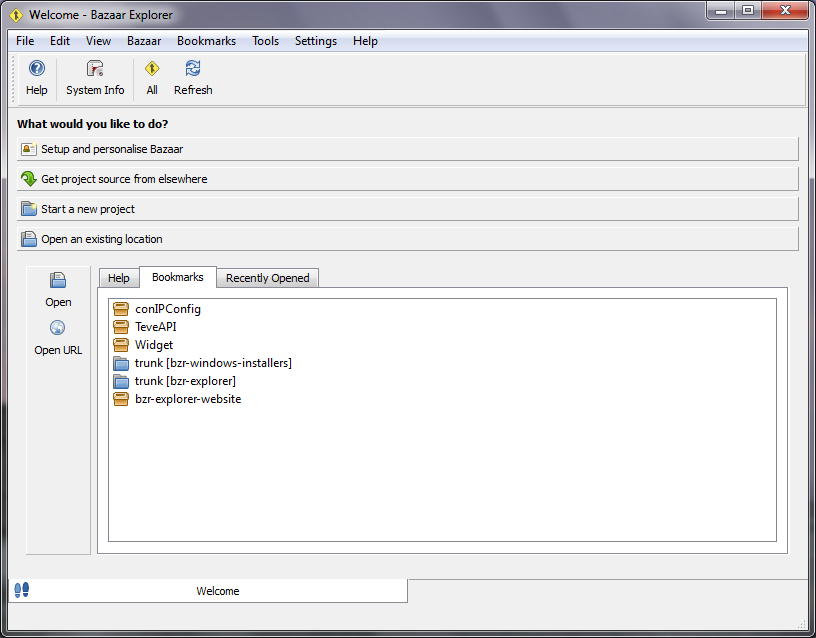 The “open locations” welcome (Bookmarks tab)
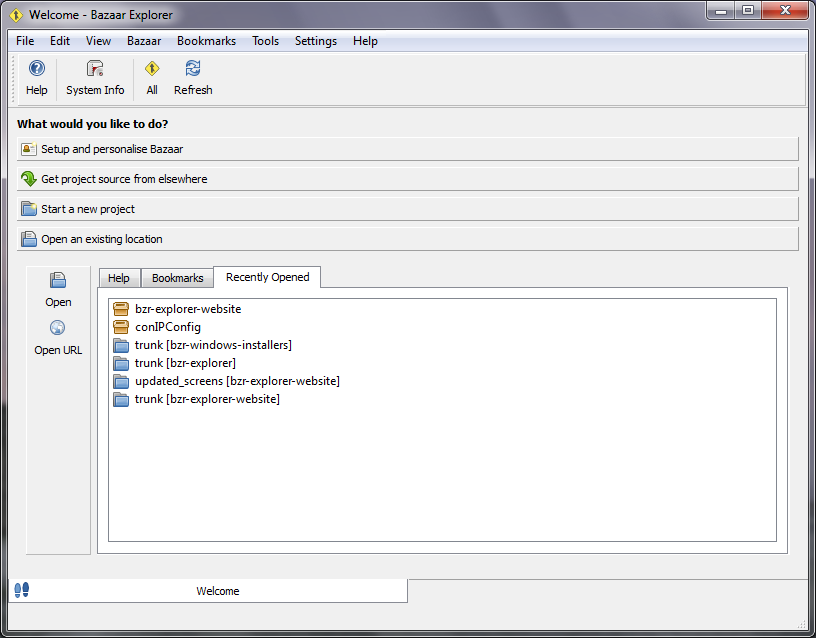 The “open locations” welcome (Recebtly Opened tab)
Normally, the welcome page opens to the first panel. If you have bookmarks defined or recently opened locations though, it will open to the last panel and display them. To open a bookmark or recently opened location, double-click it.
Repository view
The repository view shows the branches and checkouts inside a repository. It is also used for managing branches.
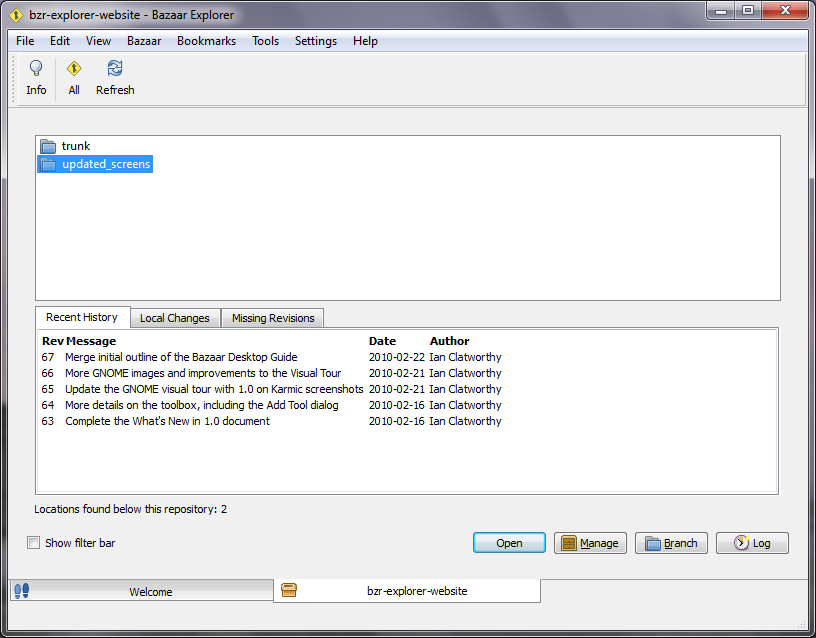 The last 5 revisions are shown in the Recent History tab. To open a branch, double-click on it or select it and select Open.
To create a new branch from an existing one, click on the branch to use as the source and select Branch.
The Local Changes tab shows you whether the working tree has uncommitted changes or not. It also shows you whether a given branch has revisions which are yet to be merged into the parent branch.
The last 5 revisions are shown in the Recent History tab. To open a branch, double-click on it or select it and select Open.
To create a new branch from an existing one, click on the branch to use as the source and select Branch.
The Local Changes tab shows you whether the working tree has uncommitted changes or not. It also shows you whether a given branch has revisions which are yet to be merged into the parent branch.
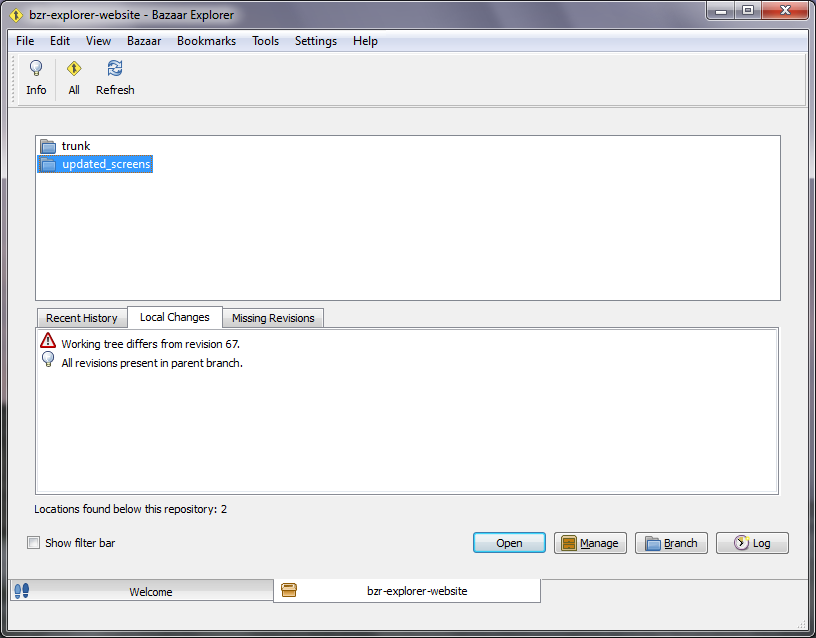 The Missing Revisions tab shows the revisions which are in the parent branch but not this one.
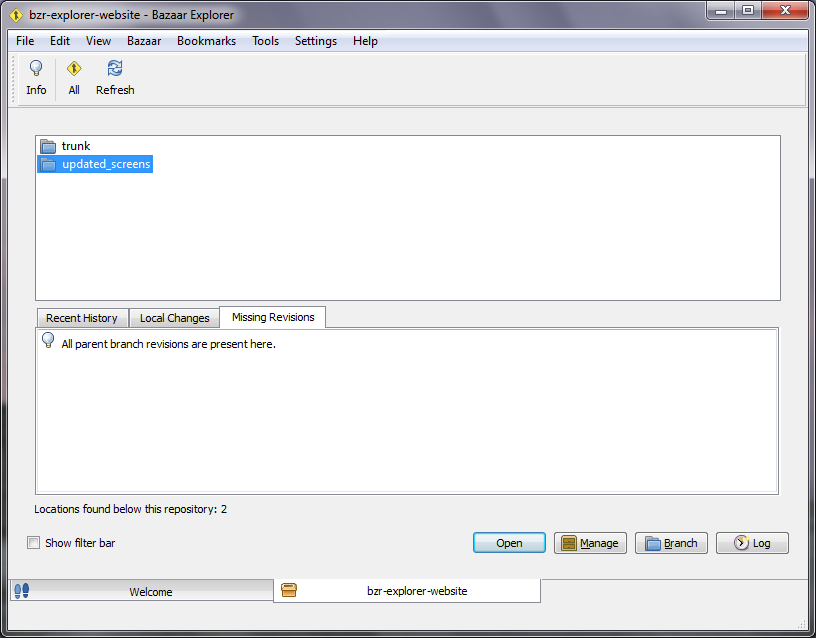 The Manage button opens the repository’s root directory in your file manager. This is useful if you wish to rename or delete branches.
Status view
When you open a branch or checkout, the status view is shown.
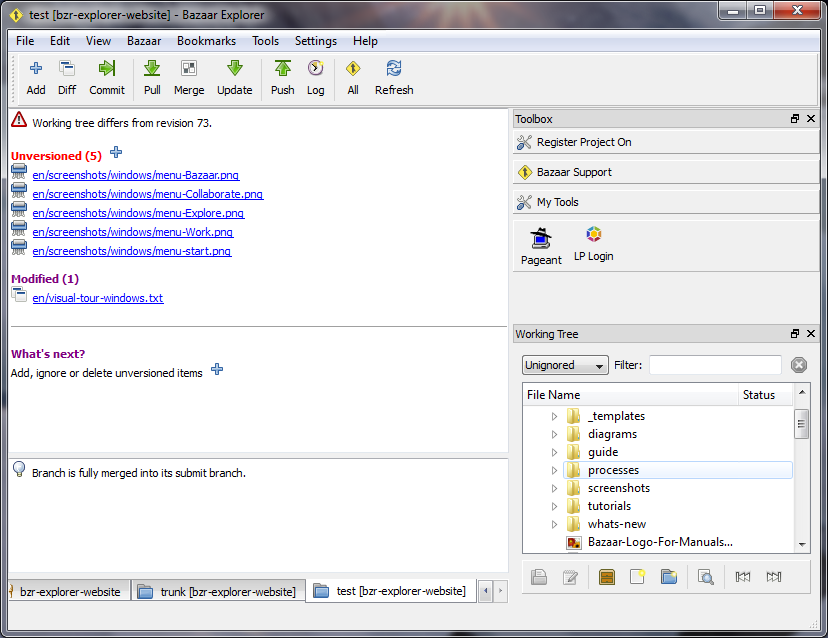 The left-hand side shows the current status of the working tree. This shows what files have been added, deleted, renamed, modified, etc. It also shows recommended actions to take next. For example, if there are no conflicts and no unversioned files, it will suggest either the Diff or Commit actions.
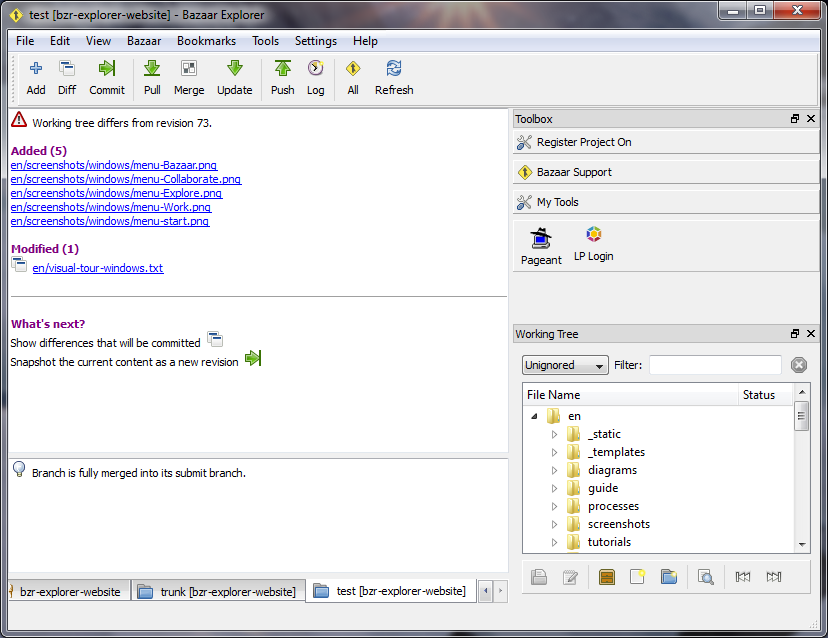 The right-hand side is the toolbox and working tree browser. The toolbox is a configurable collection of useful commands. The working tree browser can be used to navigate and make changes to the current working tree. To open a file using the default application, double-click it. To edit a file, select it and select Edit. If your project has lots of files, you may wish to filter the files and directories displayed. To do this, type a string into the Filter field.
Configuration
Before using Bazaar, take a moment to configure things.
User configuration
These settings impact both Bazaar Explorer and the command line client (bzr).
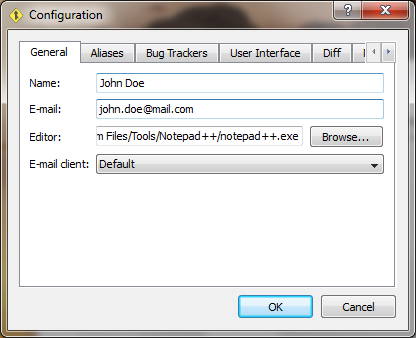 Configuring your name and email address is important when using a distributed version control system (DVCS) like Bazaar. You may also wish to configure your preferred text editor, etc.
Options
These settings only impact Explorer.
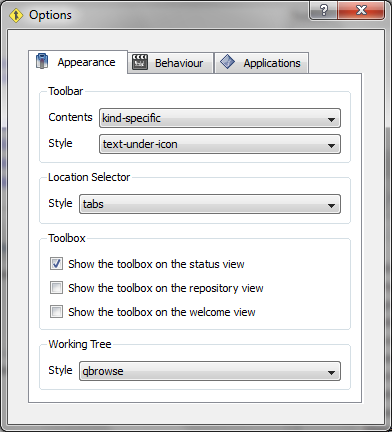 Appearance preferences
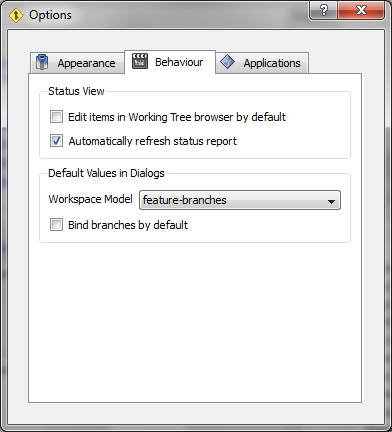 Behavior preferences
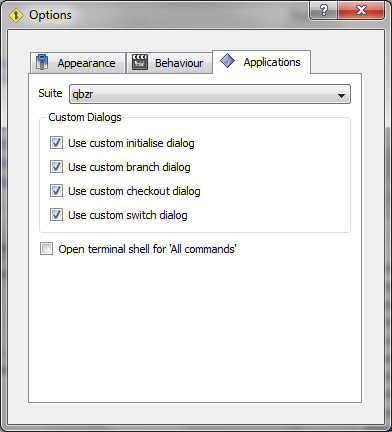 Applications preferences
If you wish to use bzr-gtk dialogs with Explorer, select gtk as the application suite. gtk will only appear as an option if you have the bzr-gtk plugin installed.
Start actions
The Start menu is shown below.
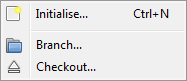
Initialize
Start a new project using the Initialize dialog.
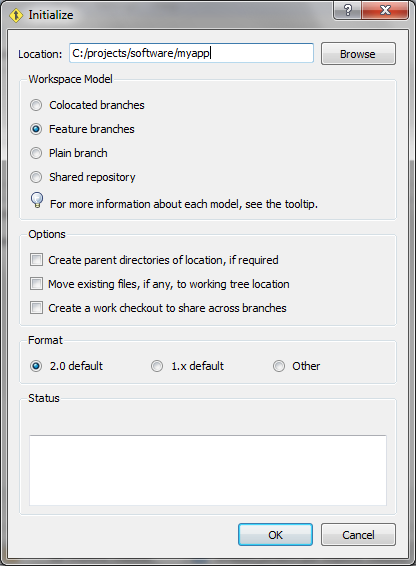 The tooltips for the various models are given below.
| Model | Tooltip |
|---|---|
| Colocated branches | Create a working tree at location pointing to a trunk branch in an embedded shared repository. |
| Feature branches | Create a shared repository at location then create a trunk branch inside that repository. |
| Plain branch | Create a plain branch at location. If inside a shared repository, revisions will be stored there. Otherwise the revisions will be stored in the branch. |
| Shared repository | Create a repository at location. Branches created under the repository will use it for storing revisions. |
Branch
Use the Branch dialog to create a new branch by cloning an existing one.
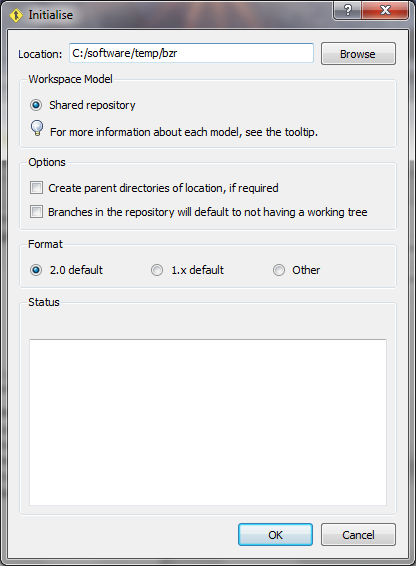
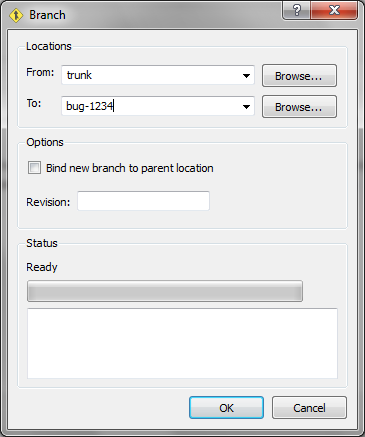 If the destination is outside a shared repository, the Branch dialog will suggest creating one. If you agree, a cut-down version of the Initialize dialog is launched.
Checkout
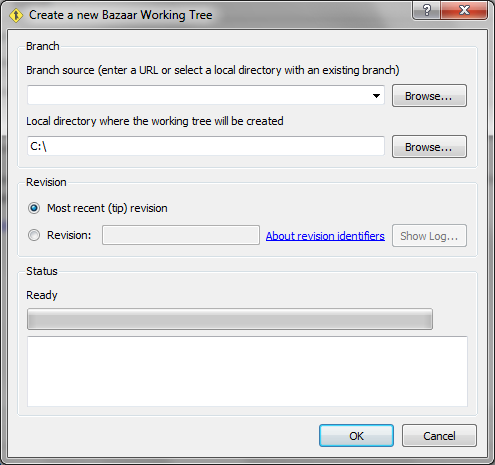
If you want a working tree in a separate location to a branch, use the Checkout dialog.
Core actions
The Bazaar menu is shown below.
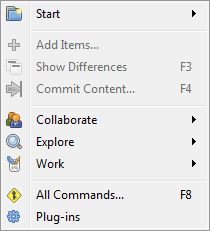 Many of the top-level actions appear on the toolbar. They may also be
suggested in the status view if Explorer thinks they
are the logical next step.
Many of the top-level actions appear on the toolbar. They may also be
suggested in the status view if Explorer thinks they
are the logical next step.
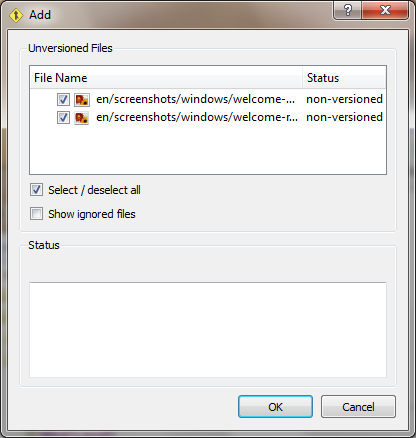
Add
Before Bazaar tracks files and directories, they need
to be explicitly specified using the Add dialog.
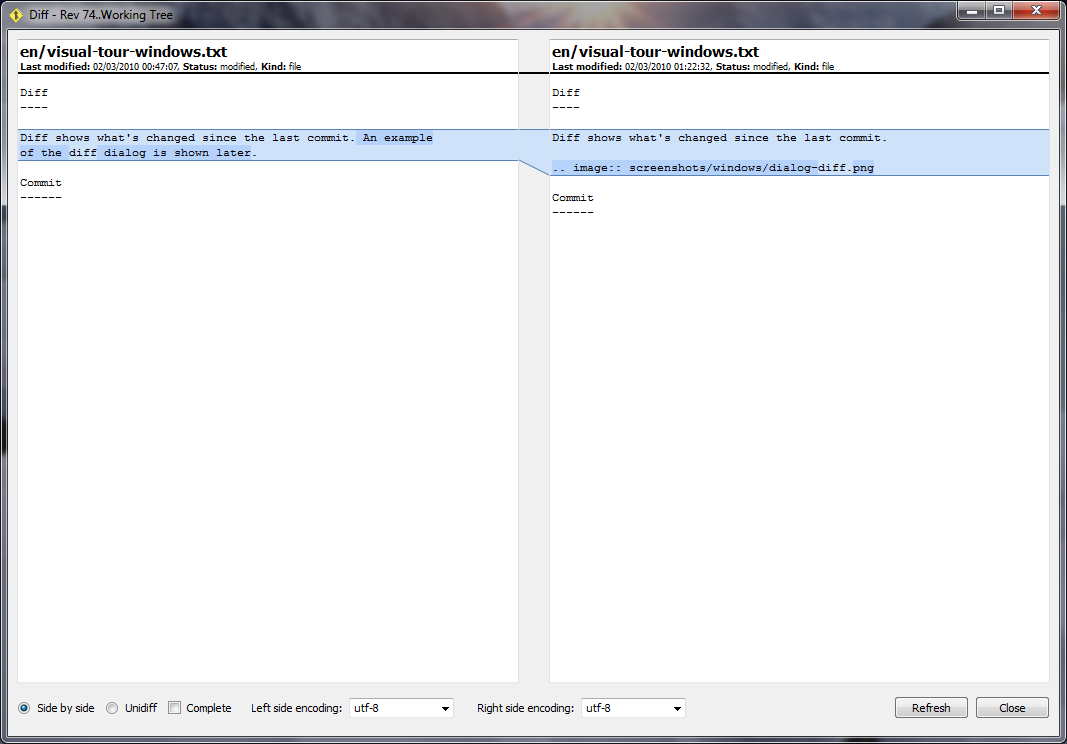
Diff
Diff shows what's changed since the last commit.
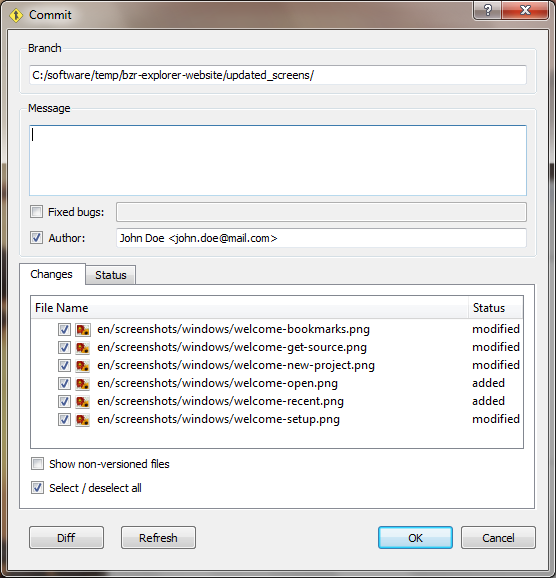
Commit
Commit records a new revision.
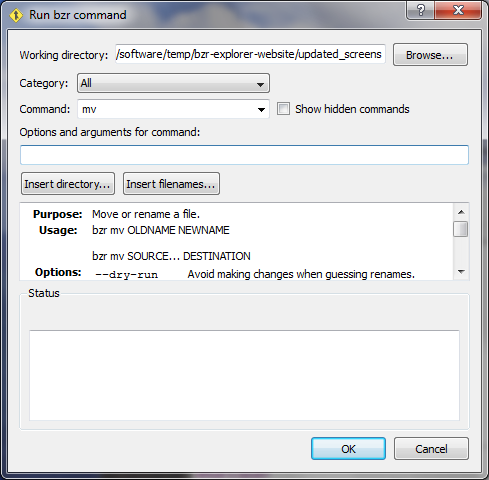
All
This dialog lets you execute any bzr command.
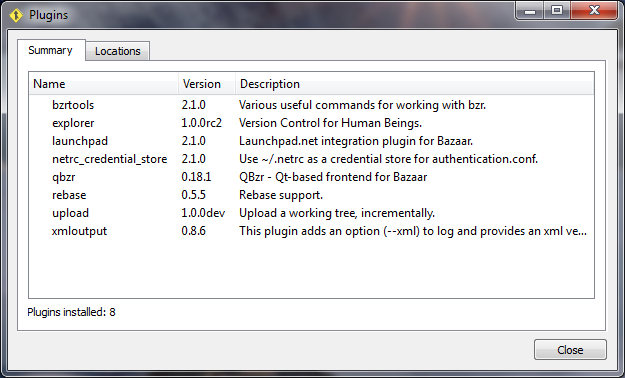
Plugins
This dialog shows the plugins currently installed and
their locations.
Collaborate actions
The Collaborate menu is shown below
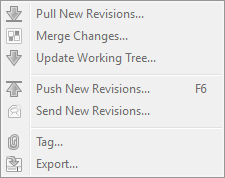 These actions help you work with others.
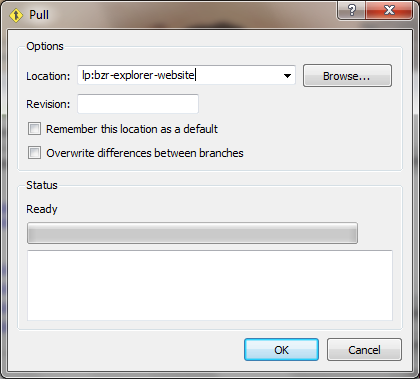
Pull new revisions
To make a branch a mirror of another one, use the Pull dialog.
Merge changes
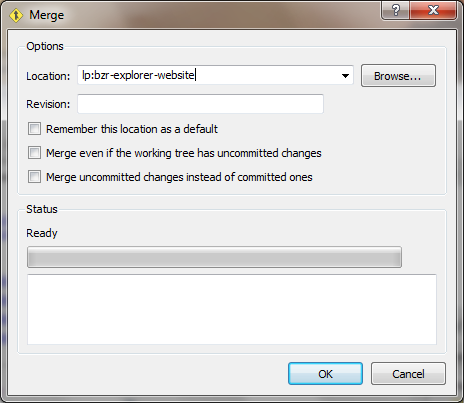
To merge changes made elsewhere into a branch, use the
Merge dialog.
Update working tree
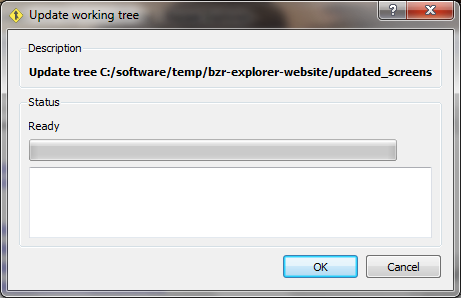
The Update dialog refreshes the working tree with changes
made to the branch. Update is a commonly used action on a
checkout.
Push new revisions
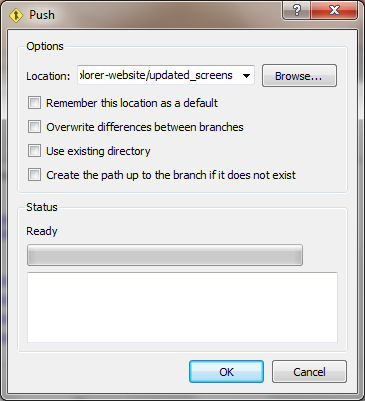
After making changes, you may wish to push them to a central
location using the Push dialog.
Send new revisions
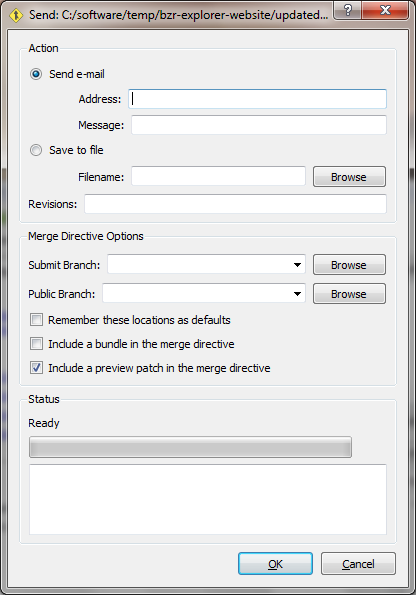
After making changes, you may wish to email them to others
using the Send dialog.
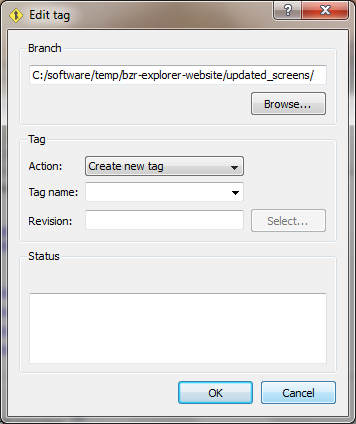
Tag
The Tag dialog lets you add, rename and delete tags.
Export
The export dialog creates archives of the last revision or
an earlier one.
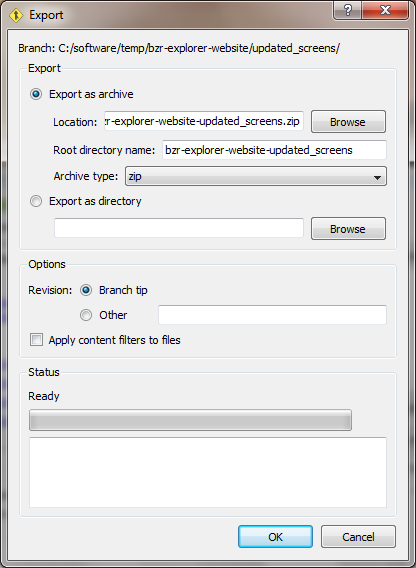 This is useful for packaging your project as a
 zip or tar.gz file, say.
Explore actions
The Explore menu is shown below.
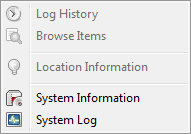 These actions provide information about the current location
and your Bazaar installation.
These actions provide information about the current location
and your Bazaar installation.
Log history
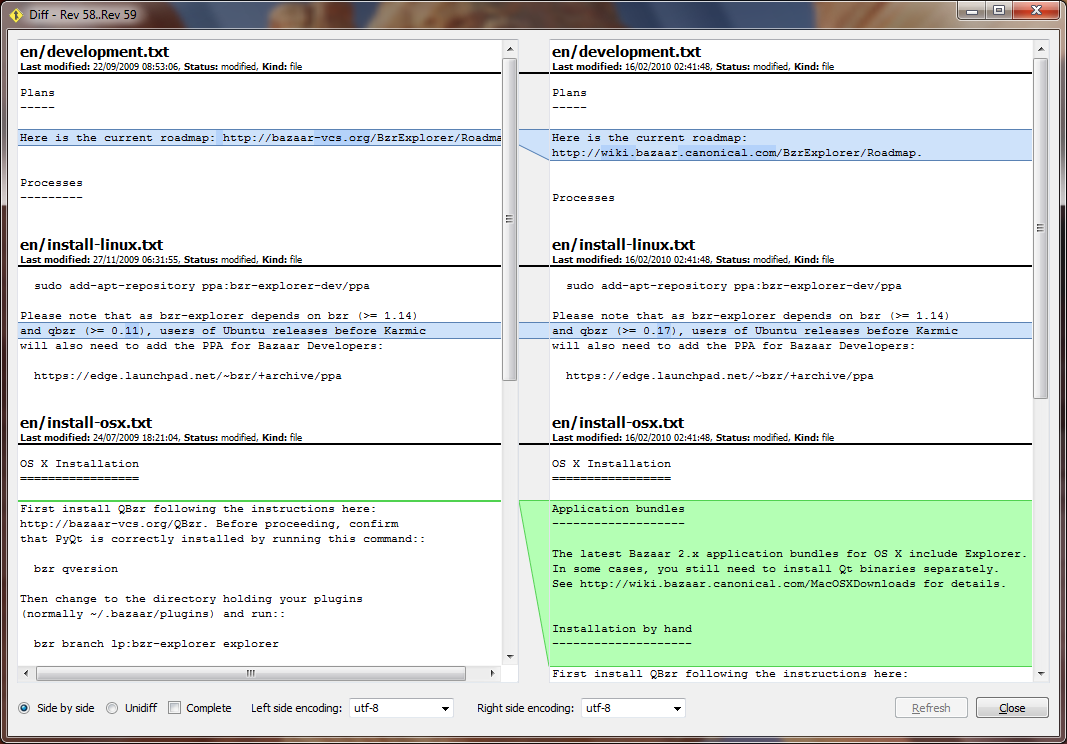
The Log dialog shows the revision graph over time.
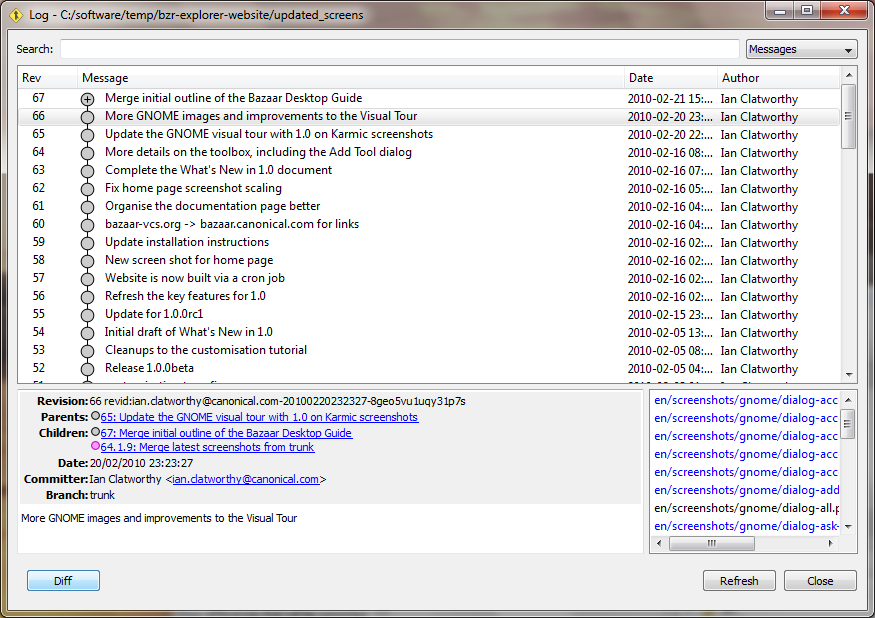 From this dialog, you can double-click on a revision to
see the changes made.
From this dialog, you can double-click on a revision to
see the changes made.
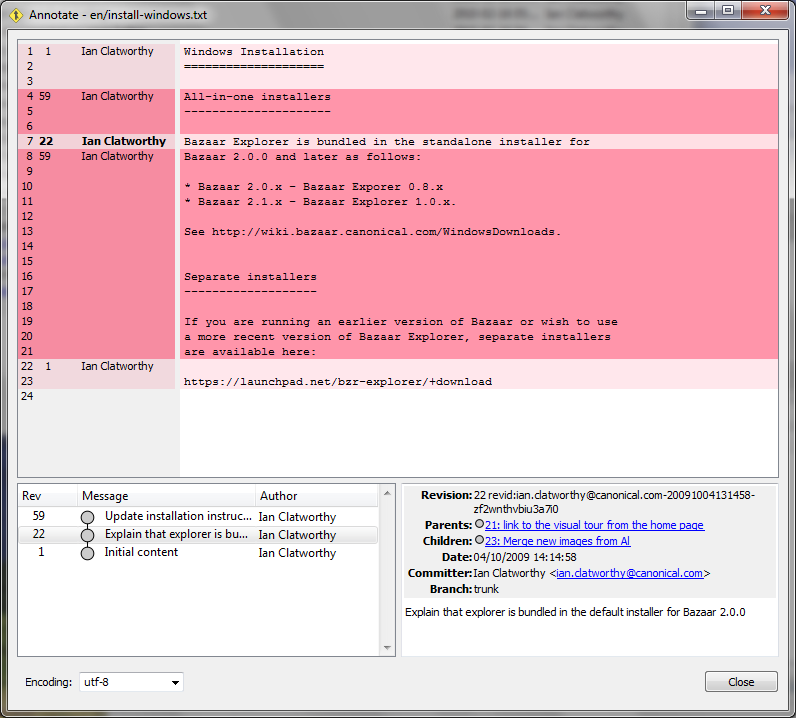
 You can also Annotate a file (see who changed each line and when)
from the context (right-click) menu.
You can also Annotate a file (see who changed each line and when)
from the context (right-click) menu.
Browse items
This dialog is also available from the working tree browser in
the status view. By default, it shows the status of each file.
To see the tree as it was at a given revision, enter the revision
identifier into the Revision field.
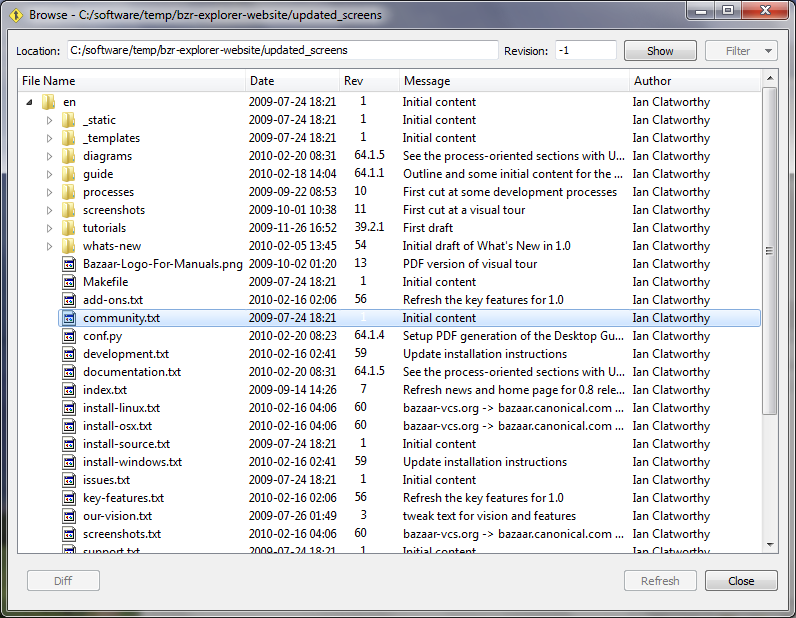 To see the content of a file at that given revision, double-click
on it. You can also view the annotations and log history
for a given file from the context (right-click) menu.
To see the content of a file at that given revision, double-click
on it. You can also view the annotations and log history
for a given file from the context (right-click) menu.
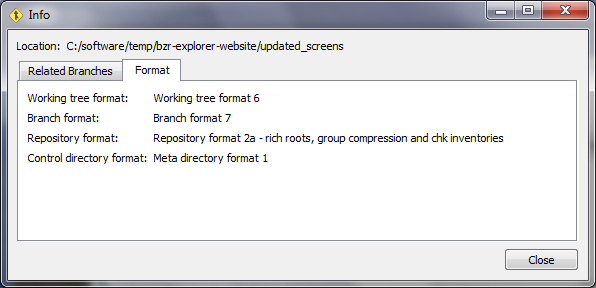
Location information
This dialog shows information about the current branch, checkout or
repository.
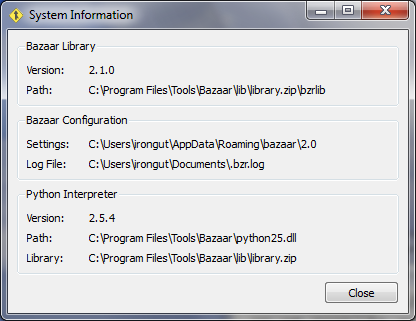
System information
This dialog shows information about how Bazaar is installed.
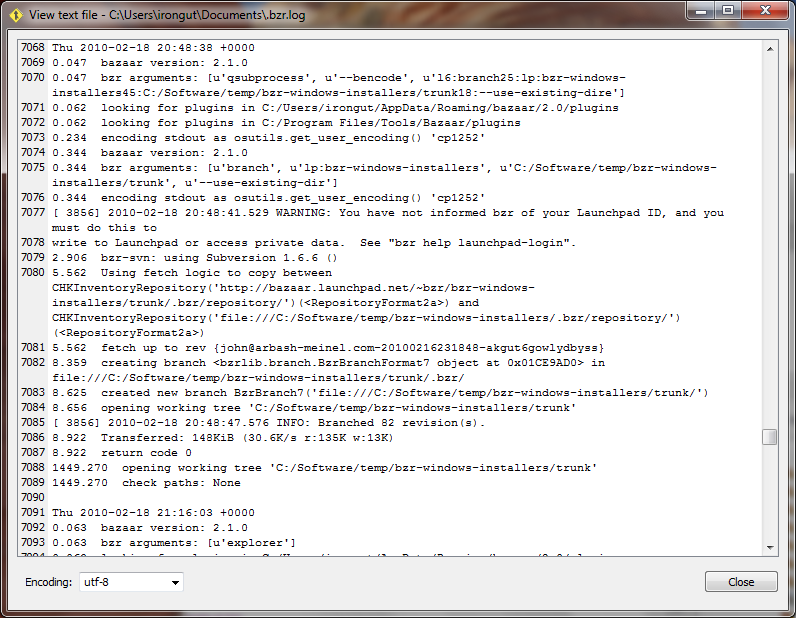
System log
This displays the bzr.log file. You may be asked to provide
information out of this file when troubleshooting problems.
Work actions
The Work menu is shown below.
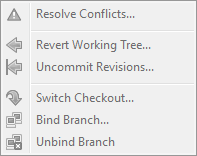 These actions operate on the current tree or branch.
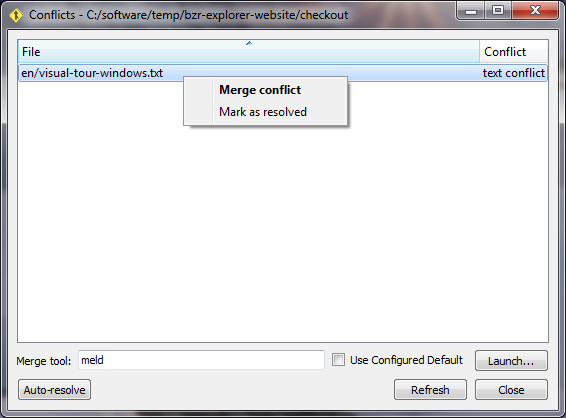
Resolve conflicts
After merging branches, some changes may conflict with
each other. The conflicts dialog is used to resolve them.
Revert working tree
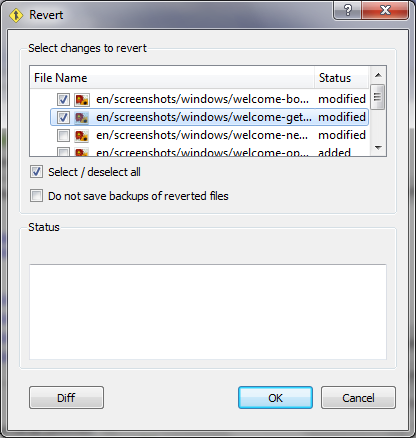
To undo changes to one or more files, use the Revert dialog.
Uncommit revisions
To rollback one of more commits, use the Uncommit dialog.
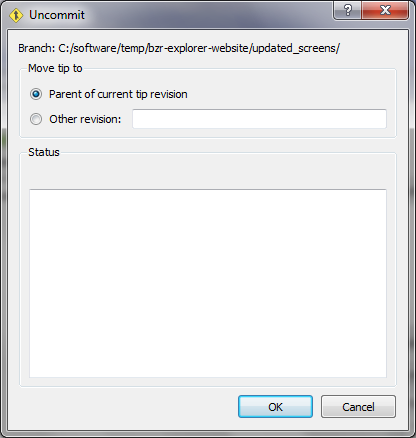 The main reasons for doing this are to correct the commit
message or to change the set of files committed.
The main reasons for doing this are to correct the commit
message or to change the set of files committed.
Switch checkout
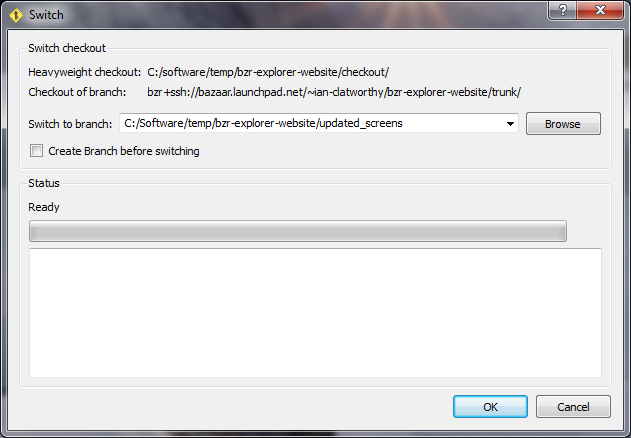
The branch a checkout is pointing to is changed using the
switch dialog.
Bind branch
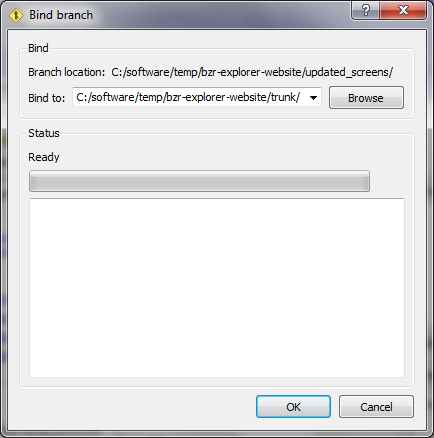
Bazaar lets you bind a local branch to a remote branch so that
commits are made to both places at once. Bound branches implement
the commonly-used centralized version control workflow.
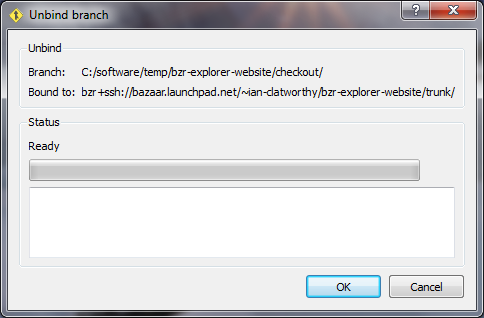
Unbind branch
To unbind a bound branch, use the Unbind dialog.
Other Bazaar actions
Add tools
You can add your own tools to the Toolbox and Tools menu using
the Add Tool dialog (or by defining them in an xml file directly).
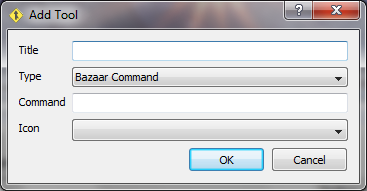 Three types of tools are supported:
- Bazaar sub-commands, e.g. lp-open
- Local applications, e.g. eclipse
- Web links.
Tool collections can be packaged by experienced users to help others ramp up to speed on your project.
Accessories
Bazaar Explorer can be extended via add-ons known as accessories. Each accessory can provide new tools, bookmarks, custom editors, toolbars and more.
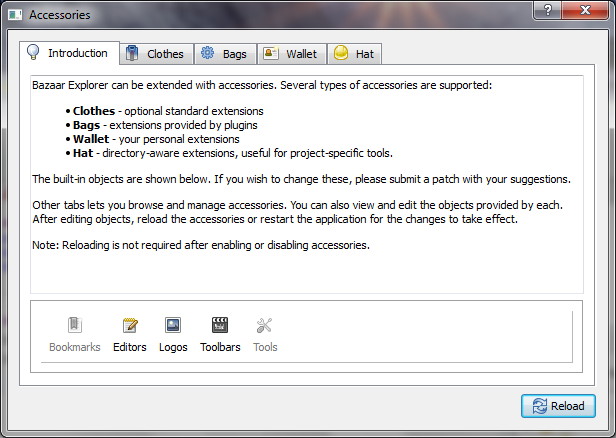 Accessories explained and browsing the built-in objects
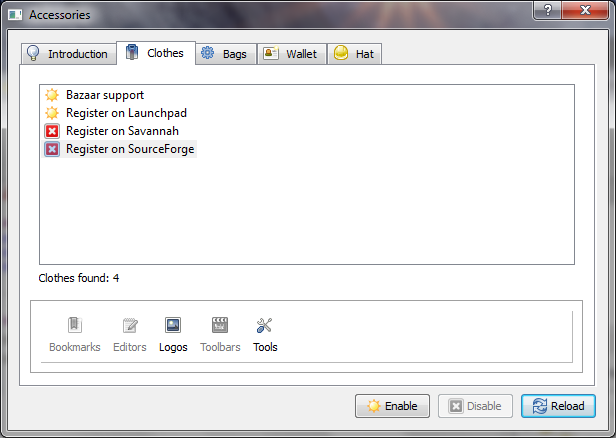 Clothes are standard features which you can enable or disable
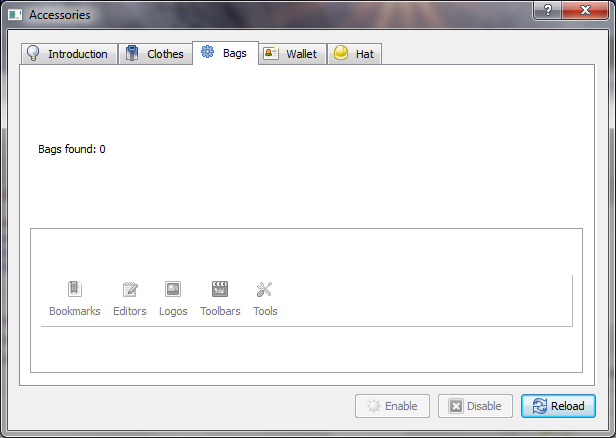 Plugins provides bags of goodies
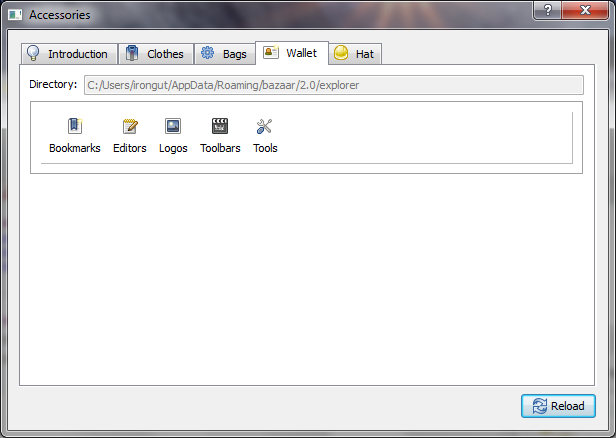 Personal extensions are stored in your wallet
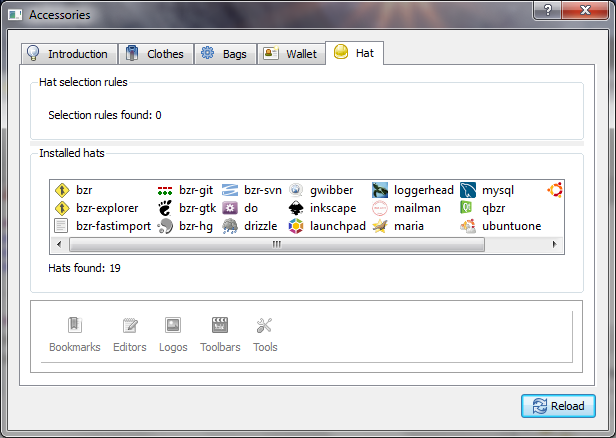 Hats provide project-specific objects